Lookup Tables
Description
The Lookup Table (short LUT) is used to reduce processing time for Orchestra. It stores precomputed data or results from complex calculations required by a mapping. By storing these results in the LUT, Orchestra can quickly retrieve the values without recalculating them each time, thus saving processing time.
In Orchestra, the LUT is structured as a conversion table consisting of key-value pairs.
Lookup Tables can be used directly in an Orchestra graphical mapping. To use a Lookup Table in an Extended Java Mapping it is necessary to create a proxy in a Java Source.
Creation
-
To create a Lookup table, click on the plus icon located on the bottom left of the screen and click on Miscellaneous.
-
Click on Lookup table.
-
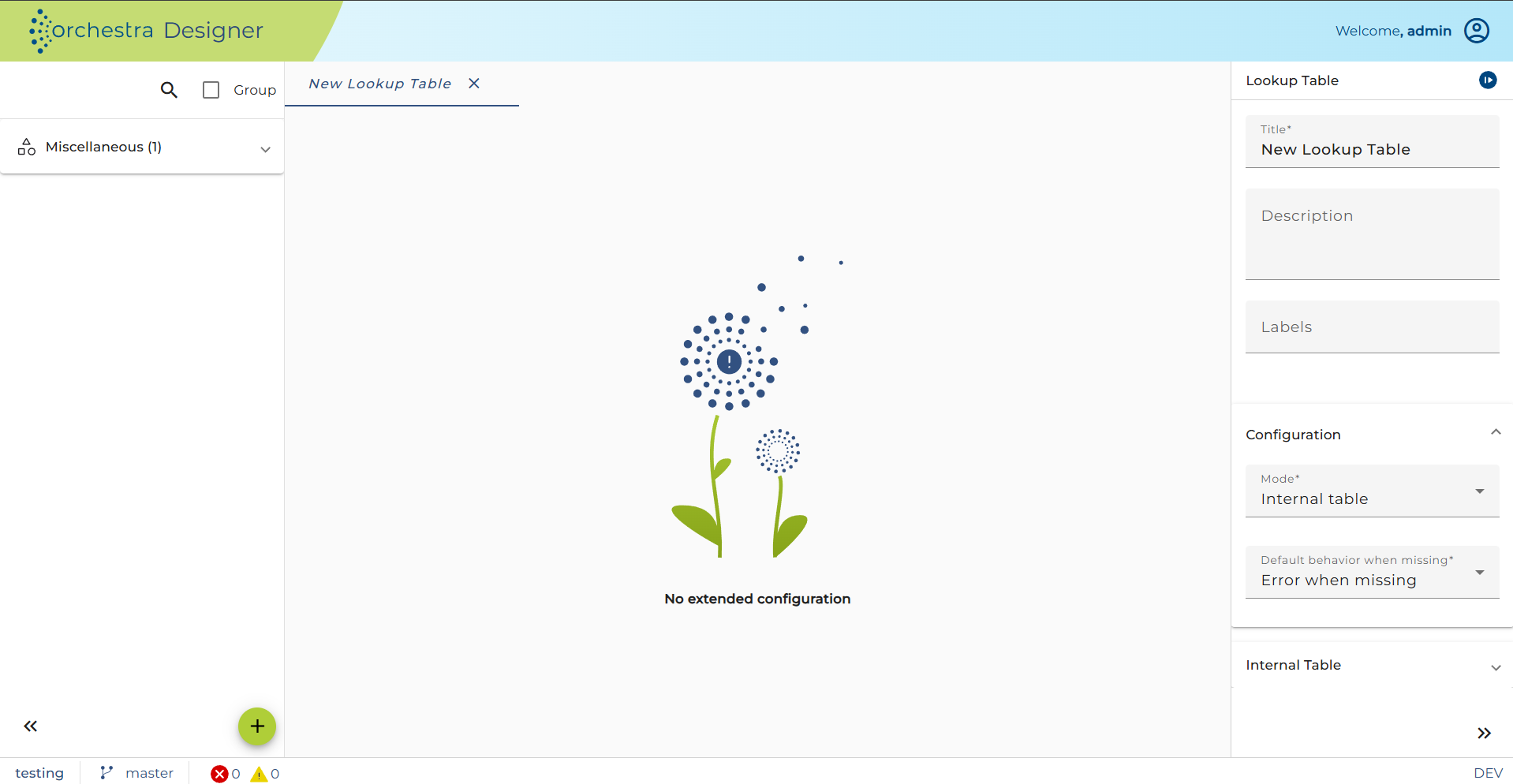
Enter an appropriate name for the new look-up table and optionally a short description.
Configuration
Orchestra supports four data sources for LUT usage.
Clicking the drop-down menu button on the right panel and choose one of the following data source:
-
Internal Table - simple static key-value table stored inside a scenario. It can not be changed at runtime.
-
Regex - extends the simple table by regular Expressions
-
External properties file - pre-fetched file cached on scenario activation. A reload on file change can be configured.
-
Database table - using a database to manage and maintain the LUT
The configuration catalog's of these data sources differs and is described below in detail.
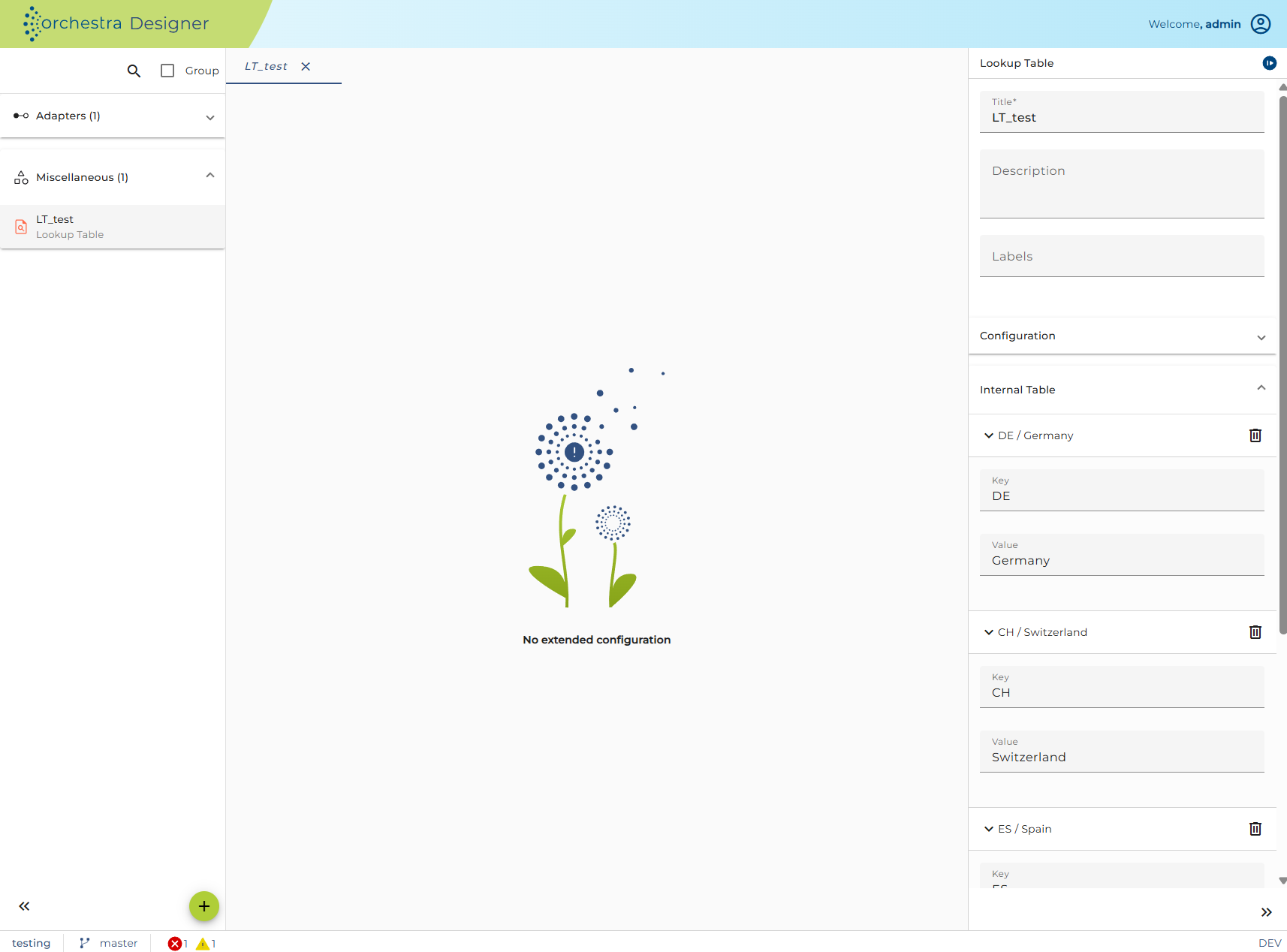
If you choose Internal Table or Regex, you get access to the internal look-up table where you can add key and target values by typing them under 'Internal Table' as illustrated in the following figure.
Default mode: you can define a standard behavior what should happen if the requested value is not contained for each kind of Lookup Table. You can choose between throwing an error or use a default value.
Default value: set the default value by typing into field Default value and save your changes. Default value will be used in case default mode is configure as Use default on missing value.
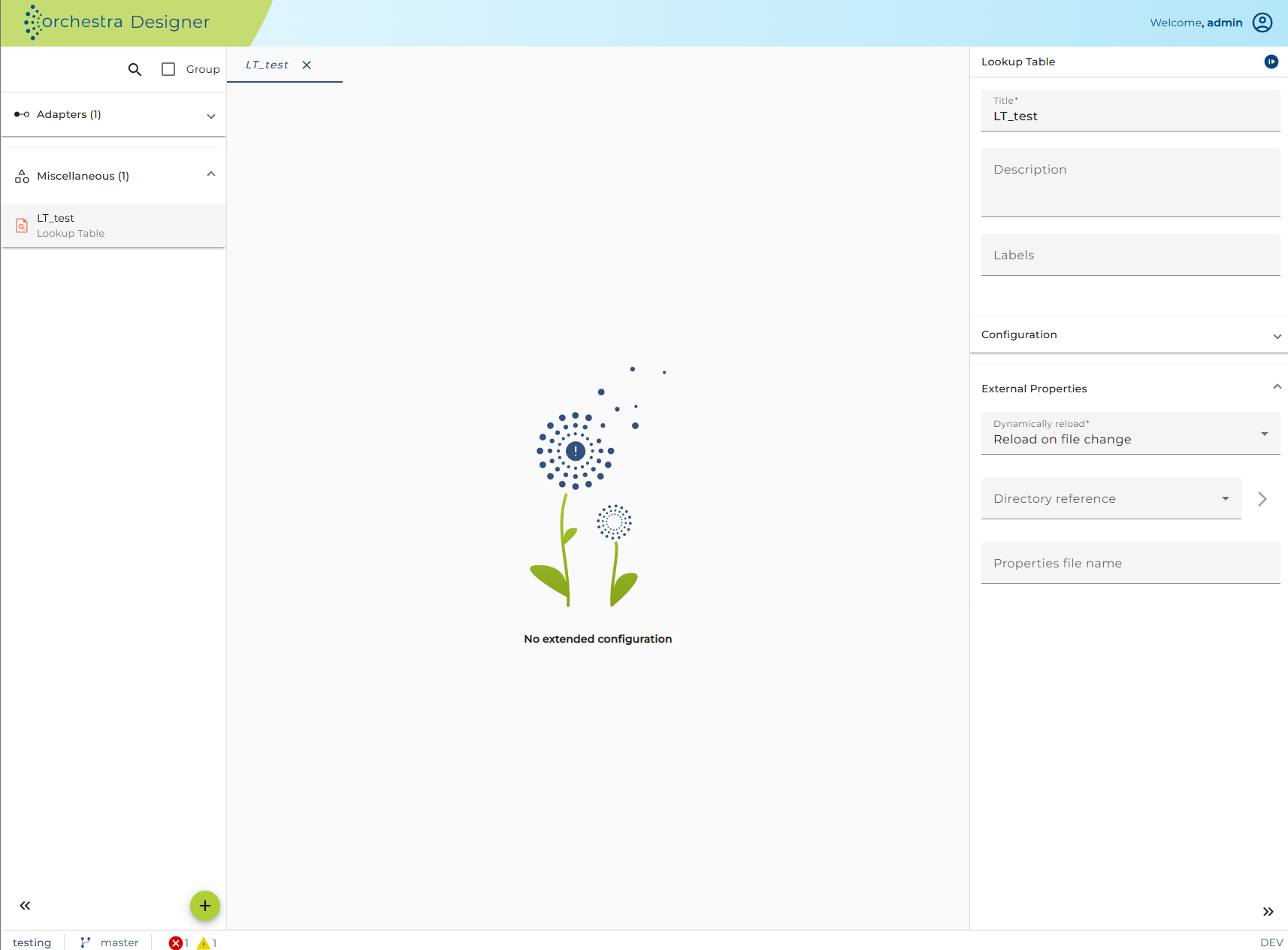
If an External Property file is your choice, you need to set a properties file name, a directory reference and a reload strategy as shown in the following figure.
You can choose between pre-fetched file cached on 'load on scenario activation' or 'reload on file change' as reload strategy.
To define a directory reference you need to assign an environment entry of type filepath.
The External Property File is based on the Java Class "Properties". The Properties can either be read from an XML-File (has to end with ".xml") or from a simple Text-File containing the key/value pairs.
The following example shows how the XML representation of a look-up table looks like:
<?xml version="1.0" encoding="UTF-8" standalone="no"?>
<!DOCTYPE properties SYSTEM "http://java.sun.com/dtd/properties.dtd">
<properties>

  <comment>Properties Example</comment>
  <entry key="Width">15</entry>
  <entry key="Height">200</entry>
</properties>
The textual representation of the look-up table may look like the following example:
# Properties Example (Comments begin with a '#')
Width=15            (Each key is assigned a value. One key/value pair per line)
Height=200
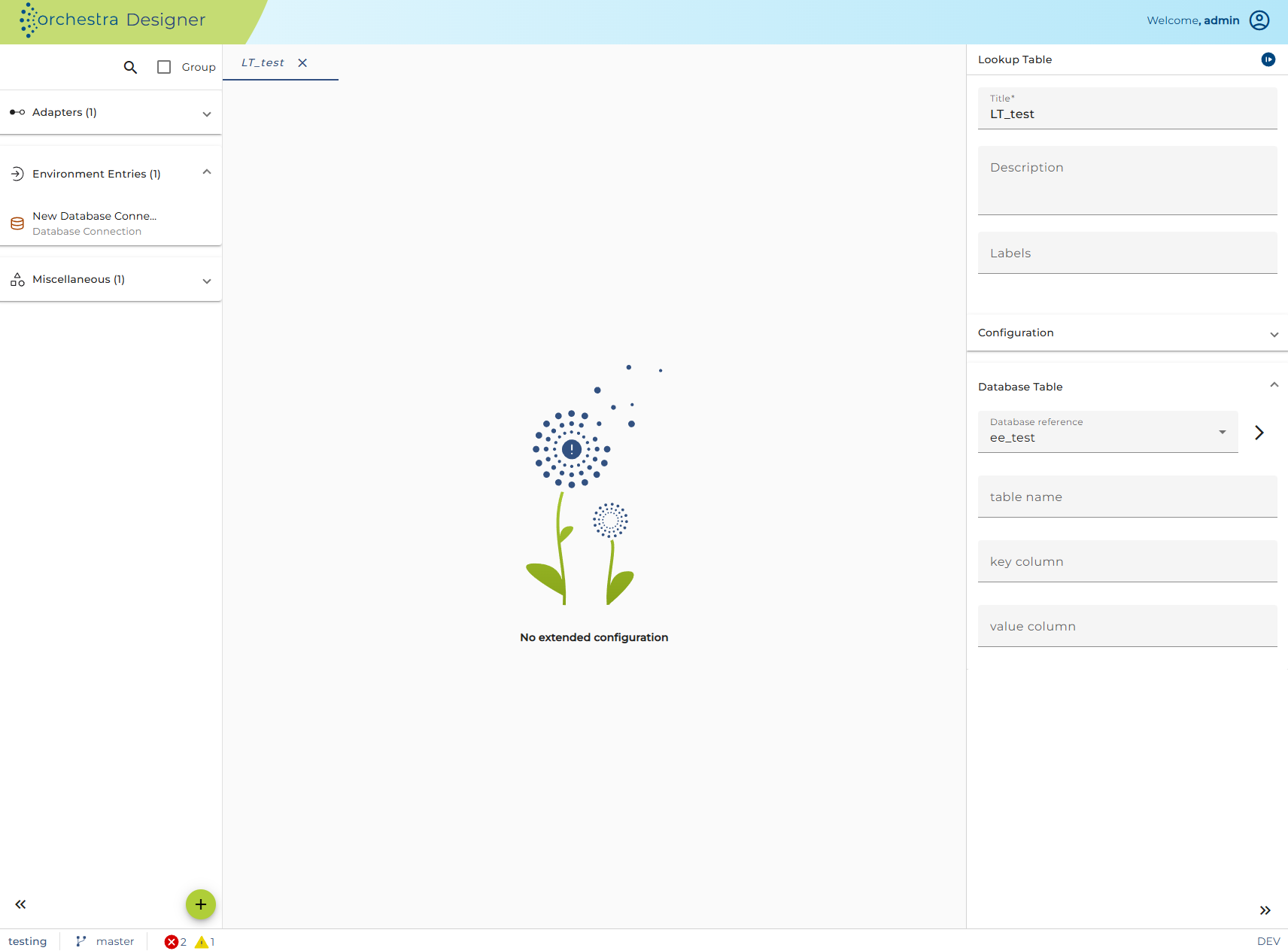
To set up a data source database table you need to assign an Environment Entry of type database connection and to specify the table and the key and value columns.
(Please see [Environment Entry - database connection](./Environment entries/Database%20Connection.md) for detailed information).
To change a Landscape Entry or upload them, the role LandscapeUpdate is needed.
For more information about LandscapeAdmin and LandscapeUpdate see also Edit User - assign access rights.